
Create an account
Sign up as a parent, an adult athlete or both, verify your email, and what club approval means.
On this page
One account per adult. Parents add their children to their own account, so a family usually has just one sign-in (plus, if you like, logins for your teens).
Who should sign up?
| You are… | Choose | What happens next |
|---|---|---|
| A parent or guardian of athletes | Parent / guardian | You add each child under Family after signing up. |
| An adult athlete (18 or older) | Athlete | You buy programs and book practices for yourself. |
| A parent who also vaults | Both | You can book for yourself and for your athletes. |
| An athlete aged 13 to 17 | Athlete | A parent approves your account. See Teen accounts and parent approval. |
| An athlete under 13 | — | A parent signs up and adds you. The sign-up page lets you email them an invitation. |
Does a parent already have an account at the club? Don't sign up a second time for your child: the parent adds them from Family, and can give them their own login later. See Give an athlete their own login.
Sign up
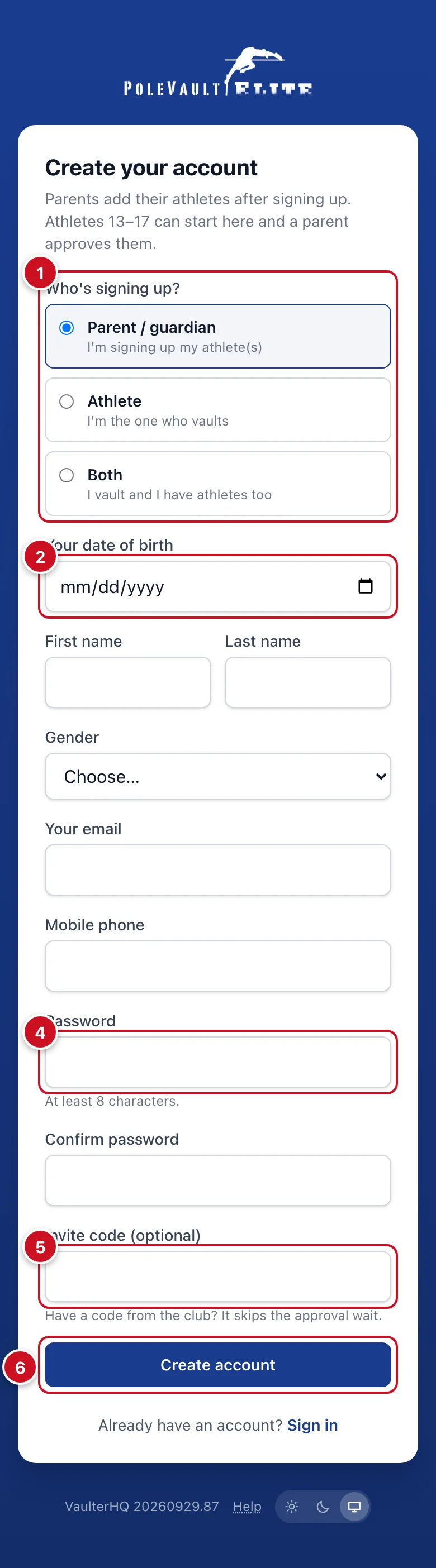
- On the sign-in page tap Create an account, then choose Who's signing up?.
- Enter Your date of birth. Parents and guardians must be 18 or older.
- Fill in your first and last name, Gender, Your email and (optional) Mobile phone.
- Choose a Password of at least 8 characters and type it again under Confirm password.
- Got an Invite code from the club? Enter it: it skips the approval wait. Otherwise leave it empty.
- Once the club has published its Terms and Privacy policy, tick I agree to the Terms and Privacy policy (the links open them). See Your privacy.
- Tap Create account.
Is this you? If the club already has someone with your name and date of birth (for example the club or a family member added you before), we ask before creating a second account:
- that profile already has a login: Sign in with it instead, or use Forgot your password?;
- That's me: your login is created and the club connects it to your existing profile;
- That's someone else with the same name: your account is created as usual.
Signed up from a family invite link with the email it was sent to? You go straight back to the invite, and your email already counts as verified.
Coming from RhinoFit?
If your club moved from RhinoFit, the sign-up page first asks New to the club, or coming from RhinoFit?. Choose Coming from RhinoFit so you're connected to the athletes the club already brought over, instead of starting a second profile. Then choose who you are:
- I'm a parent or guardian: create your login as usual. Next you go straight to Find your athlete from RhinoFit: enter your athlete's last name and date of birth, choose them, and sign the club's waiver for them. Repeat for each athlete.
- I'm the athlete (18 or older): enter your last name and date of birth.
- If your RhinoFit profile has an email, we send a link to it (the page shows it partly hidden, like ma***@gmail.com). Tap the link, set your password, then sign in with that email.
- If it has no email, choose your email and password on the next page. Your login goes on your existing profile.
- If we can't find you, check the spelling and date and try again, or tap Continue as new. The club then connects your account to your RhinoFit history.
Not from RhinoFit? Choose New to the club for the usual form. After signing up, RhinoFit families see a short tour, What's different from RhinoFit.
Verify your email
Right after signing up you'll see Check your email. Open the message we sent and tap the link to confirm your address. Until you do, most of the app stays locked.
- Nothing arrived? Check spam or junk, then tap Resend link on the Check your email page.
- Typo in your email? Tap Sign out and sign up again with the right address, or ask the club to fix it.
If you later change your email on your Profile, we ask you to verify the new address the same way.
Who are you signing up for?
After you sign up as a parent (and verify your email), we ask Who are you signing up for?. Home keeps asking until you answer:
- Add my athlete: find your child by last name and date of birth, link to their profile if the club already has one, and sign the club's waiver for them. See Add an athlete to your family.
- I don't have an athlete: choose I train myself (you sign your own waiver) or I'm just a parent for now (nothing else to do; add an athlete later from Family).
When every athlete's waiver is signed you see All set, with a ✓ for each athlete.
Payment method
Some clubs ask for a card or bank account as the last sign-up step (Step 4 of 4 · Payment method), so programs and renewals can be paid automatically. It's for parents and for athletes 18 or older; athletes under 18 are never asked.
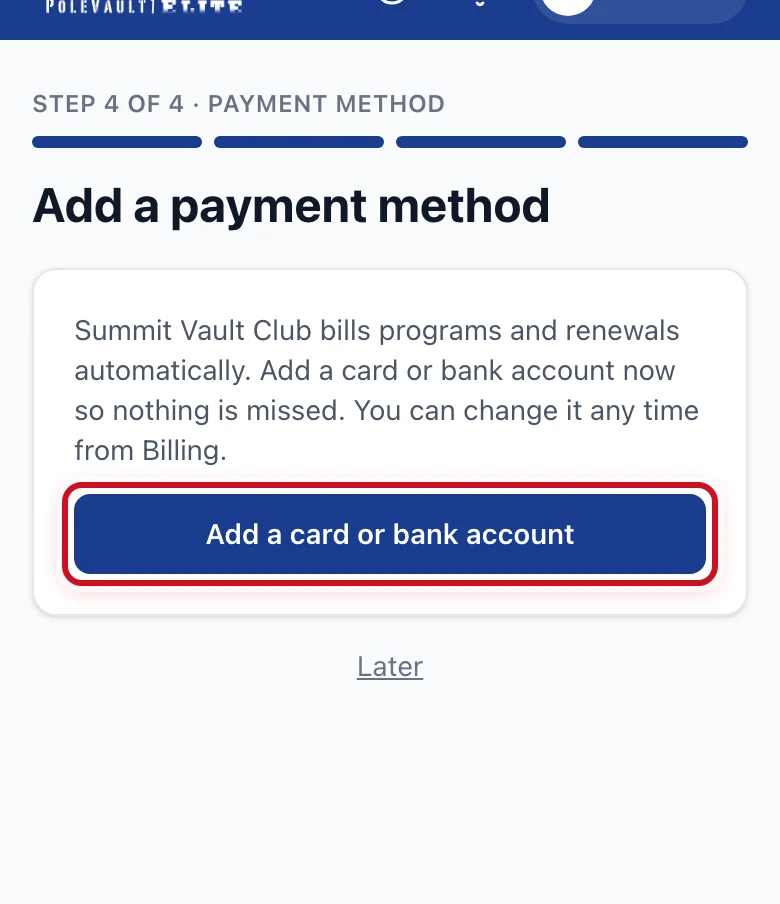
- Tap Add a card or bank account. A secure payment page opens.
- Enter your card or bank details and save. You come back to All set, which shows Payment method ✓.
If your club lets you skip it, tap Later. Home then shows Add a payment method so programs and renewals can be paid automatically until you add one (from that card, or from Billing). If your club requires it, there's no Later and sign-up isn't finished until a method is saved.
Athletes 18 or older: who pays?
If you sign up as an athlete 18 or older, the step asks Who pays your club bills?:
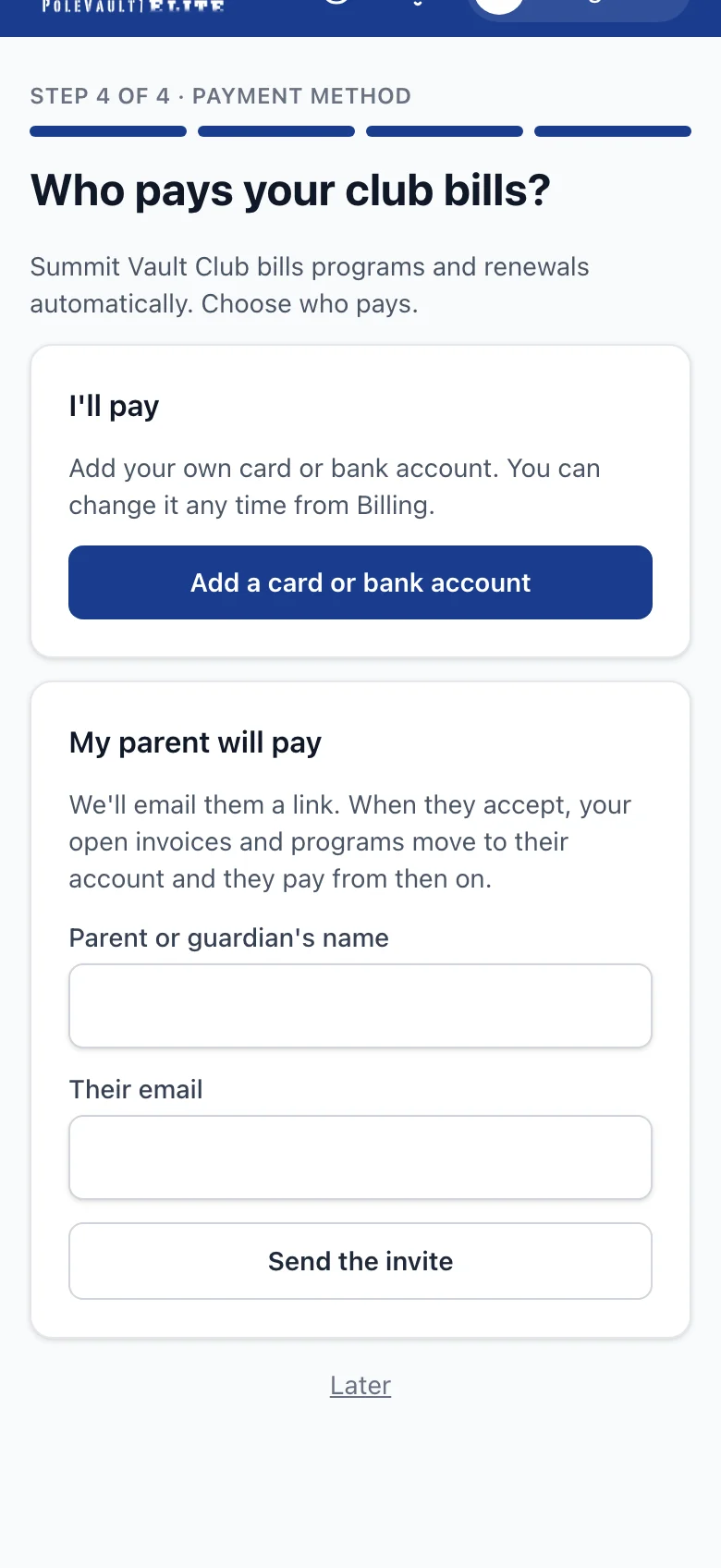
- I'll pay: add your own card or bank account, as above.
- My parent will pay: enter your parent's name and email and tap Send the invite. We email them a link. When they accept, your open invoices and programs move to their account, they pay from then on, and anything you buy online goes to them to approve first. Until then the step shows Waiting for Name to accept, with Resend (you can fix the email there) and I'll pay instead.
If your parent declines or the link expires (after 14 days), the step comes back so you can choose again.
Payments you already made, and your own saved cards, stay on your account. Only unpaid invoices and running programs move to your parent.
Club approval
Many clubs look over each new account before it can buy programs. While you wait, Home shows Waiting for approval, and you can:
- finish your profile and add your athletes;
- sign documents;
- look around the Calendar, News and Help.
Your club chooses how approval works:
- Staff approval (the usual setting): someone at the club approves you, normally within a day or so.
- Automatic: you're approved as soon as you sign up.
- After a few steps: you're approved automatically once you've done what the club asks, for example signed the sign-up documents for you and each athlete, made a first purchase, or added a payment method (an 18+ athlete who chose My parent will pay counts once that parent has one). Home lists the steps you still have to do, each with a link (for example Sign the club's waiver and sign-up documents → or Sign up for a program →). Answering I'm just a parent for now counts as the athletes step. An athlete you add later needs their sign-up documents signed before you can book or buy for them; Home says Needed before booking or buying for Name next to the document.
An invite code from the club approves you straight away.
Until you're approved, Programs shows only what non-members can buy, at non-member prices. Member pricing appears once you're approved.
Signing in later
Use the same email and password on any phone or computer, or sign in with a passkey (Face ID, Touch ID or fingerprint). Remember me is ticked already, so on your own phone or computer you stay signed in for up to 30 days between visits. Untick it on a shared or public computer. Forgot your password? See Common questions.